왜 클릭-투-클릭인가
일반적인 영역 선택은 드래그 방식이다:
- 마우스 누르기
- 끌기
- 놓기
문제는 정밀한 선택이 어렵다는 것. 데이터시트 Figure는 경계가 애매한 경우가 많다. 드래그하다가 손이 떨리면 다시 해야 한다.
클릭-투-클릭 방식:
- 시작점 클릭
- (마우스 이동하면서 미리보기)
- 끝점 클릭
장점:
- 정밀한 위치 선택 가능
- 중간에 잠깐 쉬어도 됨
- 스크롤해서 확인 후 클릭 가능
구현 전략
- PDF 캔버스 위에 오버레이 캔버스를 얹는다
- 오버레이에서 마우스 이벤트를 받는다
- 선택 영역을 오버레이에 그린다
- 선택 완료 시 PDF 캔버스에서 해당 영역을 크롭한다
┌─────────────────────┐
│  오버레이 캔버스     │ ← 마우스 이벤트, 선택 영역 표시
├─────────────────────┤
│  PDF 캔버스         │ ← PDF 렌더링
└─────────────────────┘
HTML 구조
<template>
  <div class="pdf-container" ref="containerRef">
    <canvas ref="pdfCanvasRef" class="pdf-canvas"></canvas>
    <canvas
      ref="overlayCanvasRef"
      class="overlay-canvas"
      @click="handleClick"
      @mousemove="handleMouseMove"
    ></canvas>
  </div>
</template>

<style scoped>
.pdf-container {
  position: relative;
}

.pdf-canvas {
  display: block;
}

.overlay-canvas {
  position: absolute;
  top: 0;
  left: 0;
  cursor: crosshair;
}
</style>
상태 관리
const selectionState = ref('idle') // 'idle' | 'selecting' | 'selected'
const startPoint = ref(null)       // { x, y }
const endPoint = ref(null)         // { x, y }
const currentPoint = ref(null)     // 마우스 현재 위치
상태 흐름:
idle → (첫 번째 클릭) → selecting → (두 번째 클릭) → selected → (새 선택 시작) → idle
클릭 핸들러
function handleClick(event) {
  const rect = overlayCanvasRef.value.getBoundingClientRect()
  const x = event.clientX - rect.left
  const y = event.clientY - rect.top

  if (selectionState.value === 'idle' || selectionState.value === 'selected') {
    // 첫 번째 클릭: 시작점 설정
    startPoint.value = { x, y }
    endPoint.value = null
    selectionState.value = 'selecting'
  } else if (selectionState.value === 'selecting') {
    // 두 번째 클릭: 끝점 설정
    endPoint.value = { x, y }
    selectionState.value = 'selected'
    captureRegion()
  }
}
마우스 이동 핸들러
선택 중일 때 현재 위치를 추적해서 미리보기를 그린다:
function handleMouseMove(event) {
  if (selectionState.value !== 'selecting') return

  const rect = overlayCanvasRef.value.getBoundingClientRect()
  currentPoint.value = {
    x: event.clientX - rect.left,
    y: event.clientY - rect.top
  }

  drawSelection()
}
선택 영역 그리기
function drawSelection() {
  const canvas = overlayCanvasRef.value
  const ctx = canvas.getContext('2d')

  // 캔버스 클리어
  ctx.clearRect(0, 0, canvas.width, canvas.height)

  if (!startPoint.value) return

  const end = endPoint.value || currentPoint.value
  if (!end) return

  // 사각형 좌표 정규화 (시작점이 항상 좌상단이 아닐 수 있음)
  const x = Math.min(startPoint.value.x, end.x)
  const y = Math.min(startPoint.value.y, end.y)
  const width = Math.abs(end.x - startPoint.value.x)
  const height = Math.abs(end.y - startPoint.value.y)

  // 반투명 배경
  ctx.fillStyle = 'rgba(59, 130, 246, 0.2)'
  ctx.fillRect(x, y, width, height)

  // 테두리
  ctx.strokeStyle = 'rgb(59, 130, 246)'
  ctx.lineWidth = 2
  ctx.setLineDash([5, 5])
  ctx.strokeRect(x, y, width, height)

  // 시작점 표시
  ctx.fillStyle = 'rgb(59, 130, 246)'
  ctx.beginPath()
  ctx.arc(startPoint.value.x, startPoint.value.y, 5, 0, Math.PI * 2)
  ctx.fill()
}
영역 캡처 (크롭)
선택 완료 시 PDF 캔버스에서 해당 영역을 이미지로 추출:
function captureRegion() {
  const pdfCanvas = pdfCanvasRef.value
  const start = startPoint.value
  const end = endPoint.value

  // 좌표 정규화
  const x = Math.min(start.x, end.x)
  const y = Math.min(start.y, end.y)
  const width = Math.abs(end.x - start.x)
  const height = Math.abs(end.y - start.y)

  // 새 캔버스에 크롭
  const cropCanvas = document.createElement('canvas')
  cropCanvas.width = width
  cropCanvas.height = height

  const ctx = cropCanvas.getContext('2d')
  ctx.drawImage(
    pdfCanvas,
    x, y, width, height,  // 소스 영역
    0, 0, width, height   // 대상 영역
  )

  // Blob으로 변환
  cropCanvas.toBlob((blob) => {
    const imageUrl = URL.createObjectURL(blob)
    emit('capture', {
      blob,
      imageUrl,
      rect: { x, y, width, height },
      page: currentPage.value
    })
  }, 'image/png')
}
캔버스 크기 동기화
PDF 캔버스 크기가 바뀌면 오버레이도 맞춰줘야 한다:
function syncCanvasSize() {
  const pdfCanvas = pdfCanvasRef.value
  const overlay = overlayCanvasRef.value

  overlay.width = pdfCanvas.width
  overlay.height = pdfCanvas.height
  overlay.style.width = pdfCanvas.style.width
  overlay.style.height = pdfCanvas.style.height
}

// PDF 렌더링 후 호출
watch(scale, () => {
  renderPage(currentPage.value).then(syncCanvasSize)
})
ESC로 취소
function handleKeydown(event) {
  if (event.key === 'Escape' && selectionState.value === 'selecting') {
    // 선택 취소
    selectionState.value = 'idle'
    startPoint.value = null
    currentPoint.value = null
    drawSelection() // 클리어
  }
}

onMounted(() => {
  window.addEventListener('keydown', handleKeydown)
})

onUnmounted(() => {
  window.removeEventListener('keydown', handleKeydown)
})
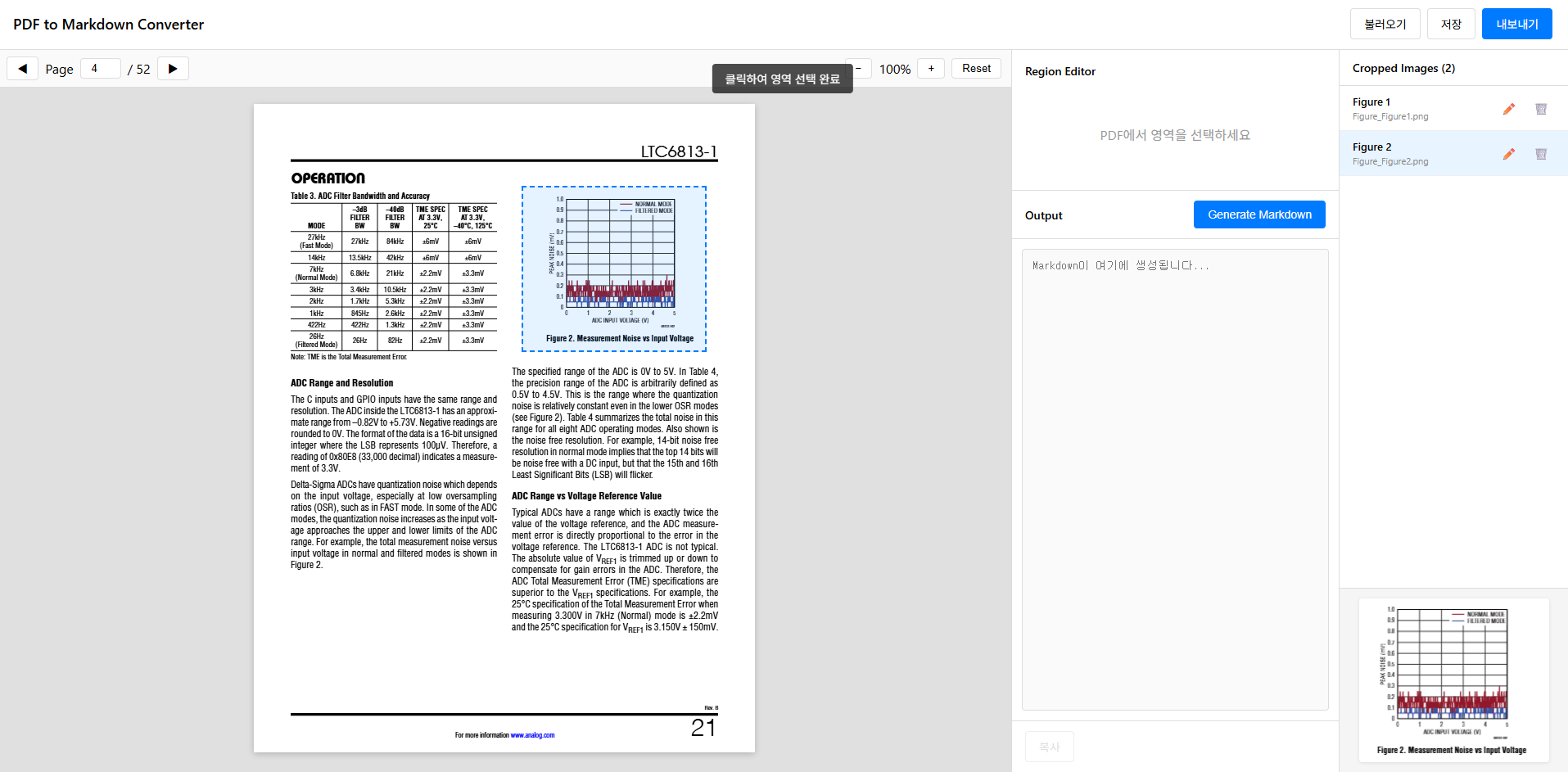
결과
이제 PDF 위에서:
- 첫 클릭 → 파란 점 표시
- 마우스 이동 → 선택 영역 미리보기
- 두 번째 클릭 → 영역 확정 + 이미지 캡처
드래그보다 훨씬 편하다. 특히 Figure 경계가 애매할 때 천천히 확인하면서 선택할 수 있다.
다음 글에서
캡처한 이미지에서 Tesseract.js로 OCR을 돌려 “Figure 1”, “Table 2” 같은 텍스트를 자동 인식하는 방법을 다룬다.